
Motors Plugin > Settings > Profile
The Profile Settings section allows you to configure user and dealer registration, listing submission rules, and profile-related options. These settings help control how users register, publish listings, and interact with the marketplace.
General
The General section contains the default profile and registration settings for all users. It allows you to manage registration methods, listing display preferences, and email verification.
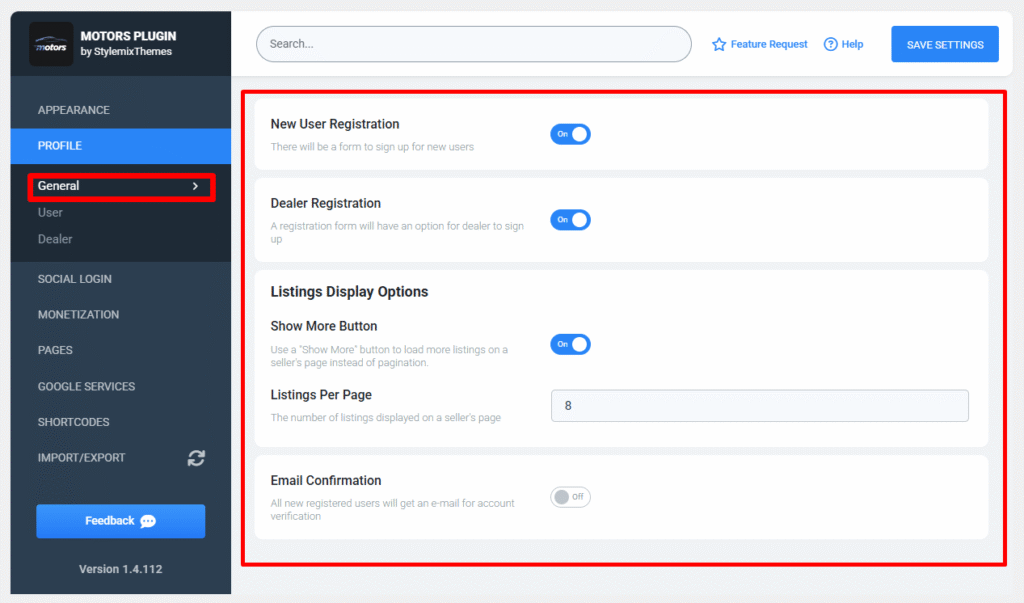
- New User Registration — Enables or disables the user registration form.
- Dealer Registration — Allows users to register as dealers during the sign-up process.
- Show More Button — Displays a Show More button to load additional listings instead of using pagination.
- Listings Per Page — Specifies the number of listings displayed on a seller’s profile page.
- Email Confirmation — Requires newly registered users to verify their email address before accessing their account.
User
The User section controls listing submission settings for regular users. Configure listing limits, image uploads, moderation, and approval notifications.
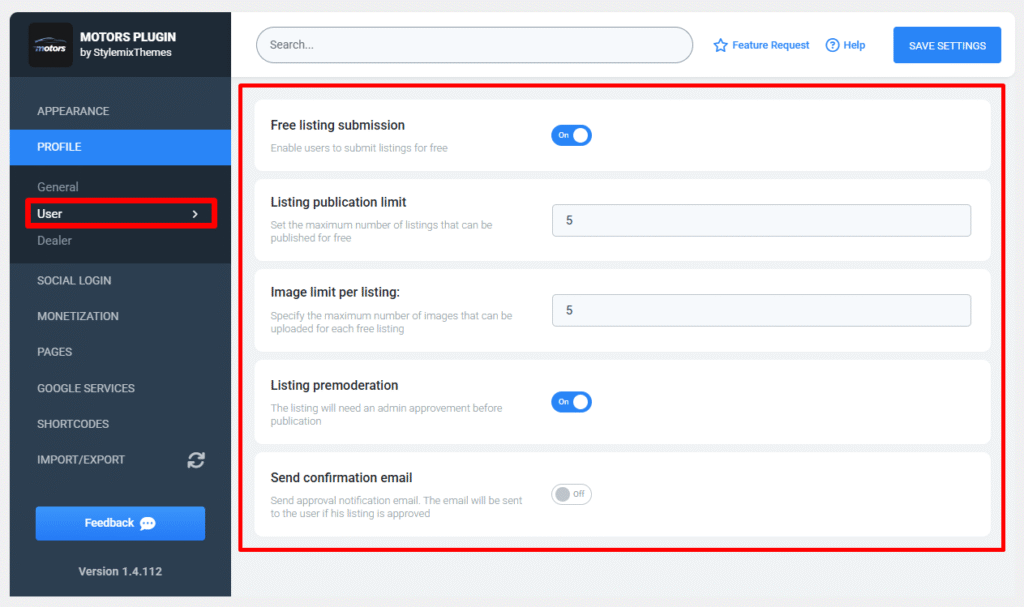
- Free Listing Submission — Allows users to submit listings without payment.
- Listing Publication Limit — Sets the maximum number of free listings a user can publish.
- Image Limit Per Listing — Specifies the maximum number of images allowed for each listing.
- Listing Premoderation — Requires administrator approval before a listing is published.
- Send Confirmation Email — Sends an email notification when a submitted listing has been approved.
Dealer
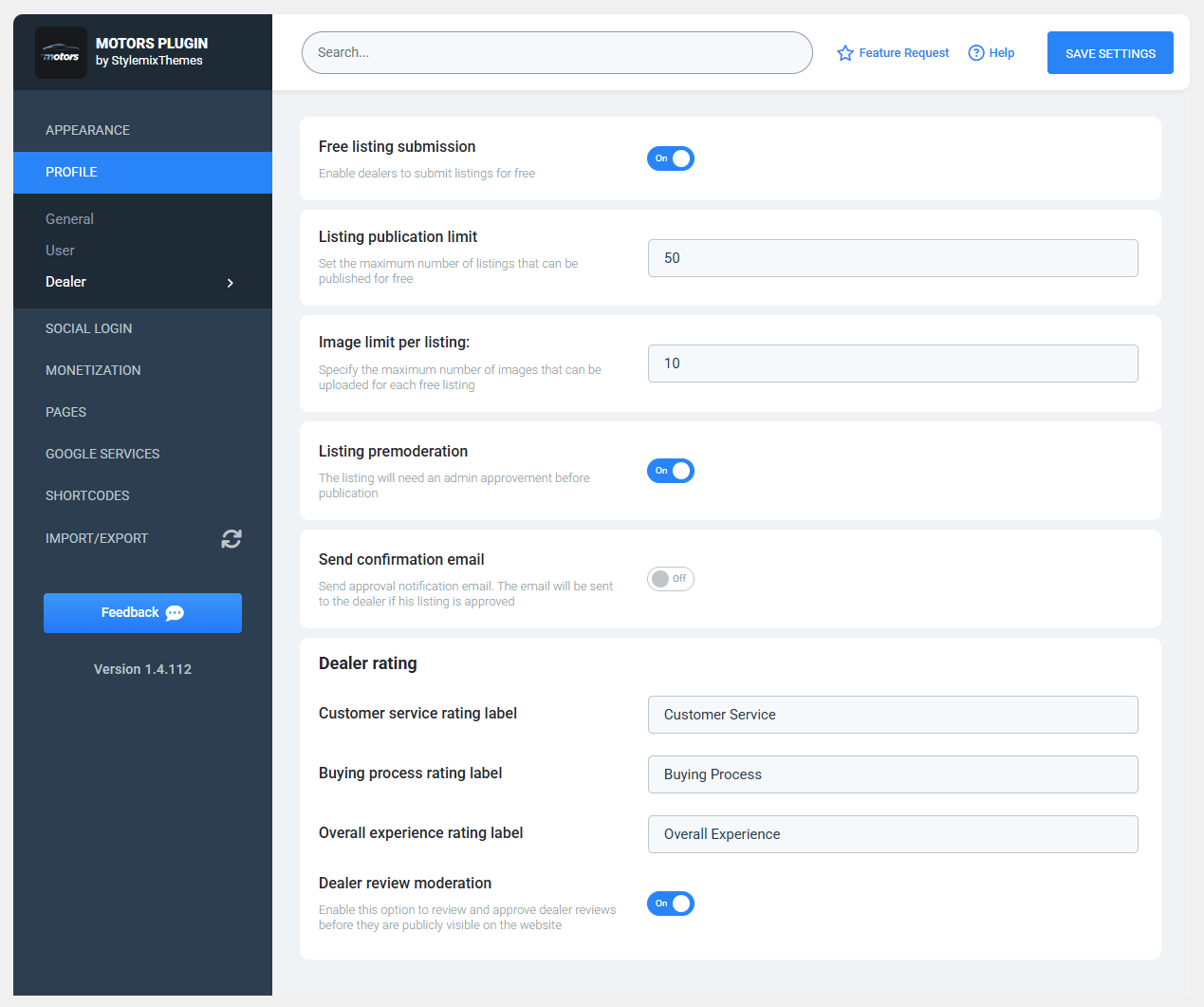
The Dealer section provides dedicated listing and review settings for dealer accounts. Configure dealer listing limits, review labels, moderation, and approval notifications.
Listing Settings
- Free Listing Submission — Allows dealers to submit listings free of charge.
- Listing Publication Limit — Sets the maximum number of free listings a dealer can publish.
- Image Limit Per Listing — Specifies the maximum number of images allowed for each dealer listing.
- Listing Premoderation — Requires administrator approval before dealer listings are published.
- Send Confirmation Email — Sends an approval email after a dealer’s listing has been approved.
Dealer Rating
The Dealer Rating section allows you to customize rating labels and review moderation for dealer profiles.
- Customer Service Rating Label — Sets the label displayed for customer service ratings.
- Buying Process Rating Label — Sets the label displayed for buying process ratings.
- Overall Experience Rating Label — Sets the label displayed for overall experience ratings.
- Dealer Review Moderation — Requires administrator approval before dealer reviews become publicly visible.