
How to Enable the Sticky Header
To enable the sticky header, edit your Header template and scroll down to the bottom of the settings panel. There, you will find the “Enable Sticky Header” option. Simply turn on the switch to activate the sticky header feature.
Once enabled, you can customize the header appearance for both states. Set different background colors for the Normal header and the Sticky header to create a seamless scrolling experience that matches your website design.
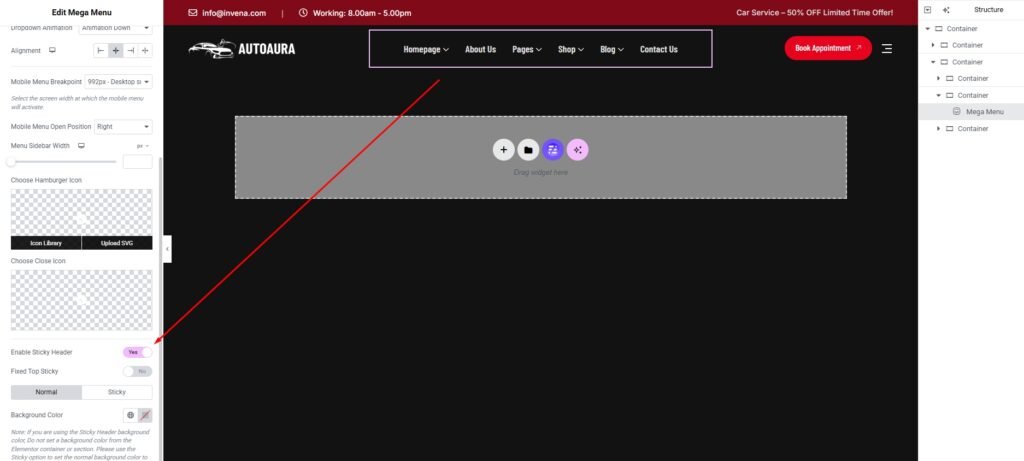
Note: To hide the top bar, add the appropriate CSS class in the Elementor settings. Navigate to the element’s Advanced tab, locate the CSS Classes field under Layout, and enter the required class name there.
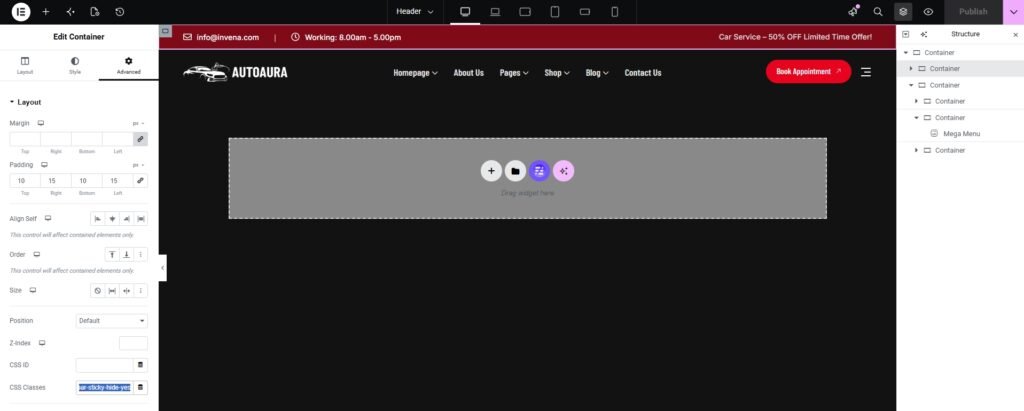
Note: Add the topbar-sticky-hide-yes class to the CSS Classes field in Elementor. Once the sticky header feature is enabled, the top bar will automatically be hidden when users scroll down the page.
Please make sure to enter the class name exactly as shown above. Any changes to the class name may prevent this feature from working properly.