If you Want to build your site like the demo? You can do it with only one click!
Check Video
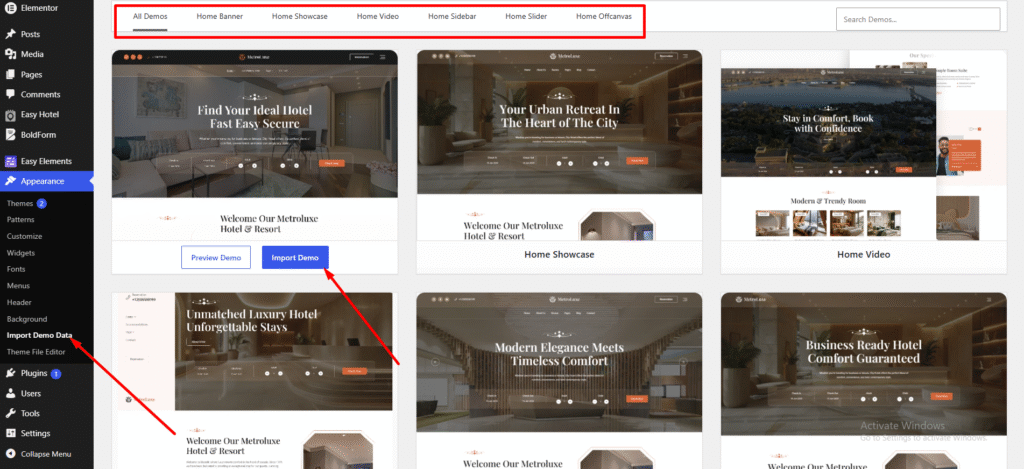
- First Select Import demo data under Appearance.
- Then Chose your demo and click to import demo data
- Click Continue & Import to proceed.
- After the import is complete, the message “ Import Complete ” will appear. Click “Visit Site” to continue.
If you need to import custom demo data, please follow the steps below.
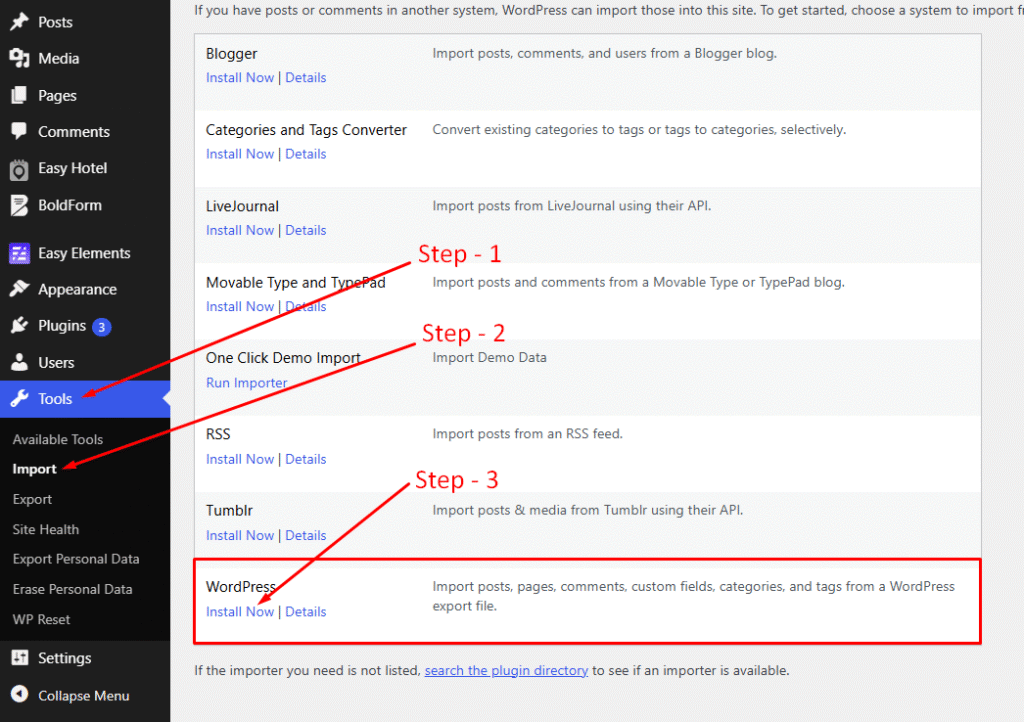
- Log in to your WordPress Dashboard.
- Go to Tools > Import.
- Click Install Now next to the WordPress importer. Once the installation is complete, click Run Importer.
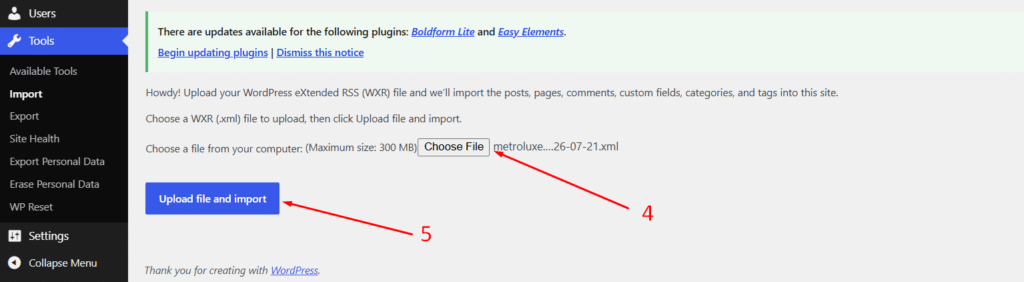
- Click Choose File and select your demo.xml demo data file.
Note: You can find the demo.xml file inside the theme root foldermetroluxe → inc → demo-data → demo.xml - Click Upload File and Import to begin the import process.
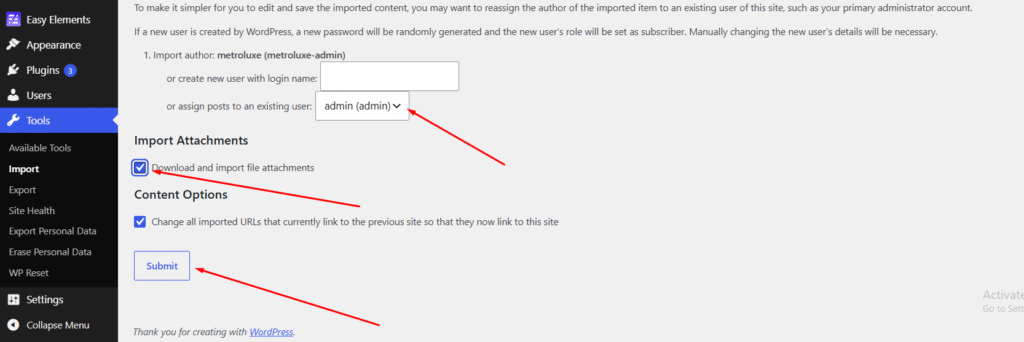
- Select an author for the imported content, or create a new author if needed.
- Check the Download and Import File Attachments option to import media files.
- Click Submit to start the import process.
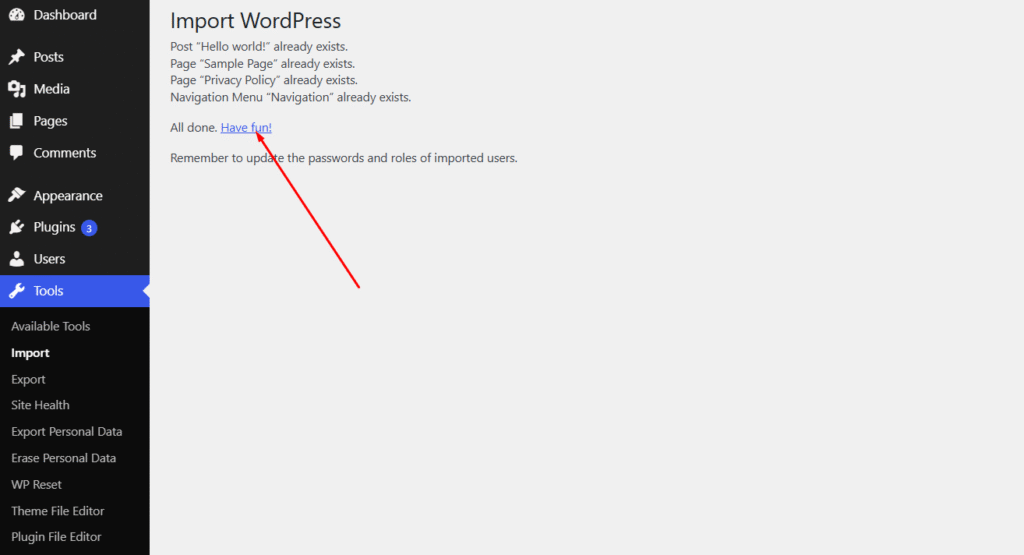
- After the import is complete, click Have Fun! to finalize the demo data import.