Motors Plugin > Search Filters
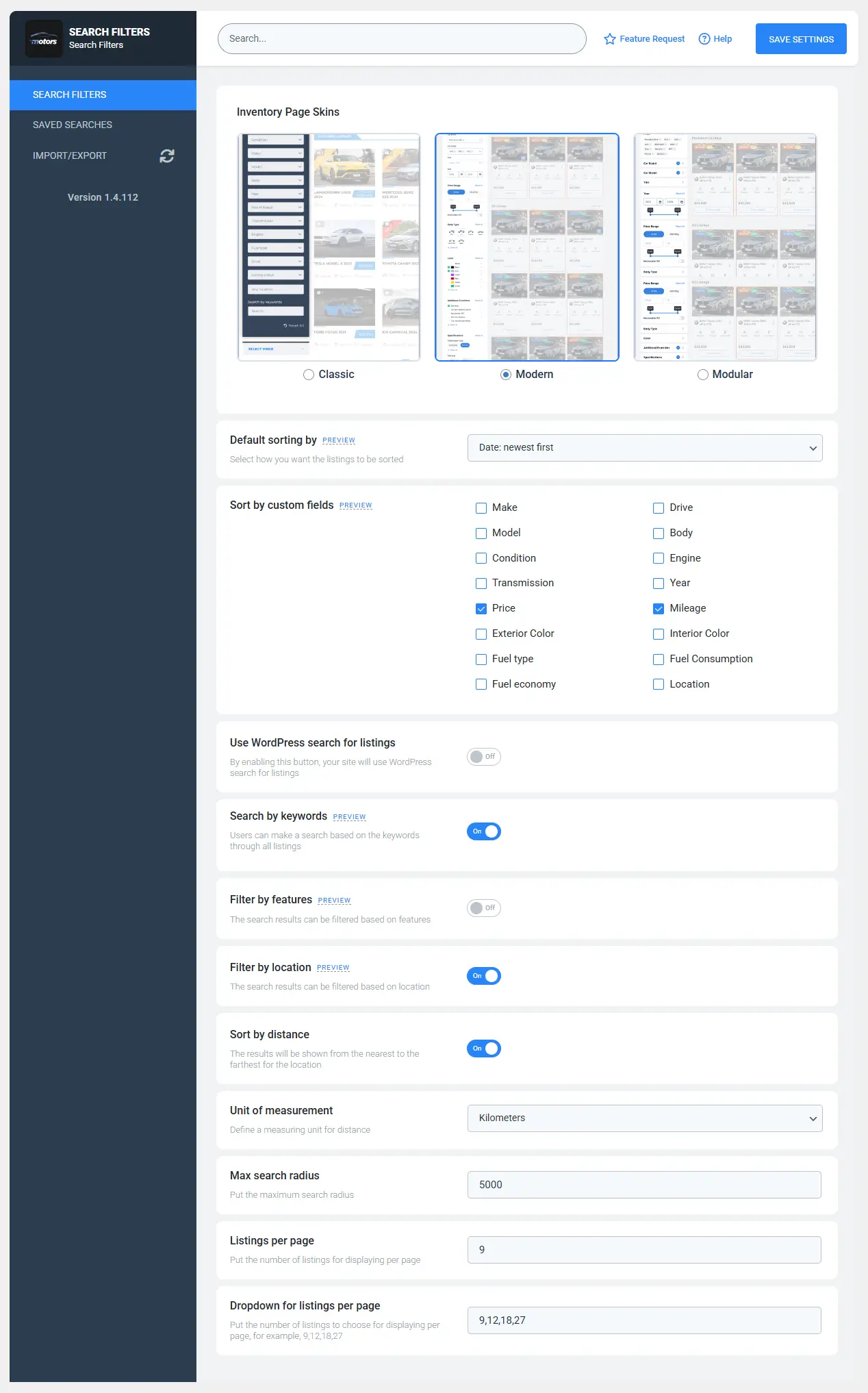
Under the Search Filters tab, you can modify parameters and behaviors related to the search filter of the Search Results Page (Inventory).
Here’s details of the Search Filter:
- Inventory Page Skins
- Default Sorting by
- Sort by custom fields
- Use WordPress search for listings
- Search by keywords
- Filter by features
- Filter by location
- Sort by distance
- Unit of measurement
- Max search radius
- Listings per page
- Dropdown for listings per page
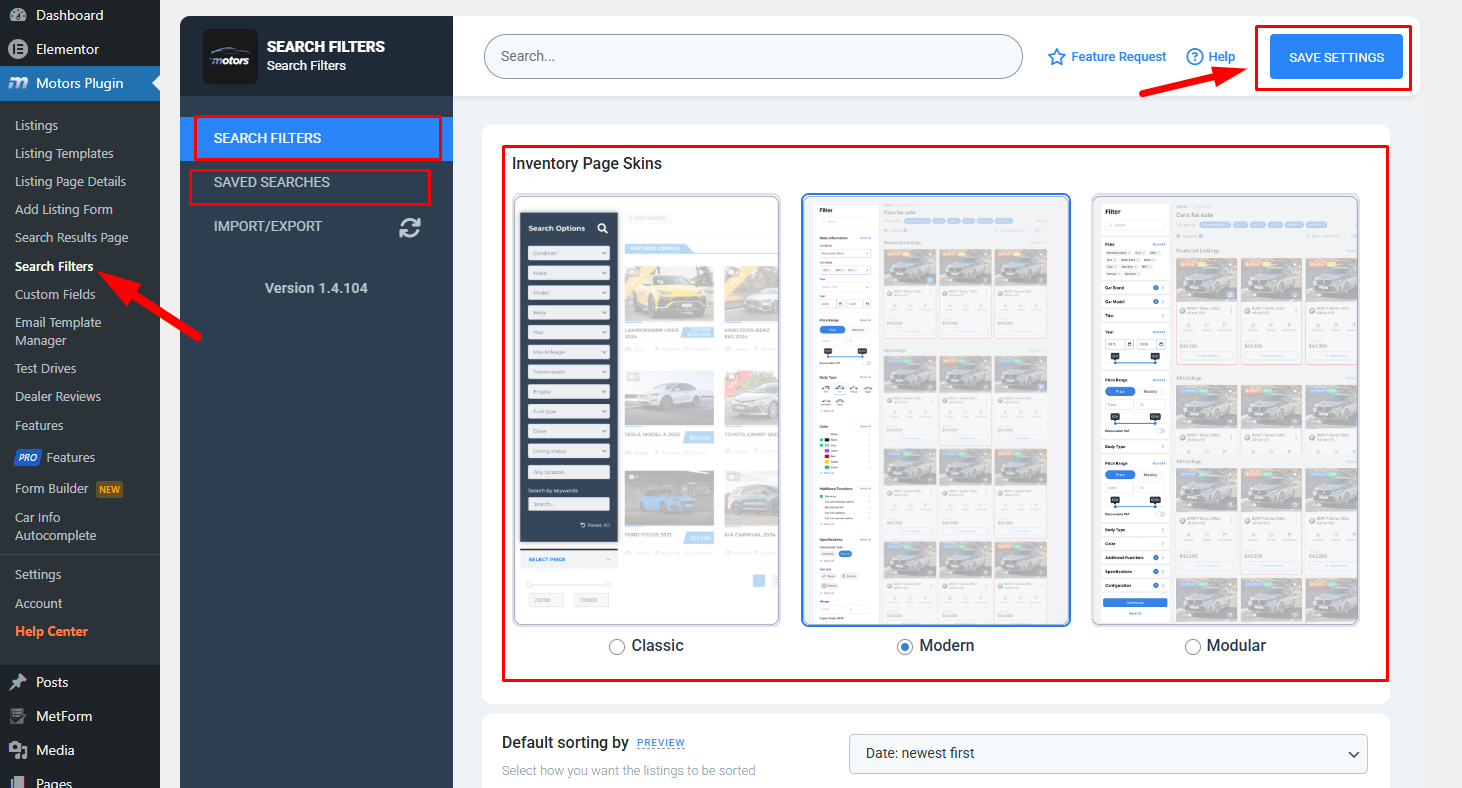
Inventory Page Skins:
Under this section, you can choose one of the available Classic, Modern, or Modular skins for the Search Filter.
Choose the layout style for the inventory page search filters to match your website’s design and improve the browsing experience.
Default Sorting by:
The Default Sorting by setting allows you to choose the initial sorting method for your listings.
Choose the default order in which listings appear on the inventory page, such as Newest First, Price (Low to High), Price (High to Low), or Featured Listings.
Sort by Listing Categories:
This setting allows you to select which categories (custom fields) users can sort listings by. You can enable sorting based on attributes, allowing users to narrow down search results based on their preferences.
Allow visitors to sort listings using supported listing categories or custom fields, making it easier to organize inventory based on attributes like Year, Mileage, Fuel Type, or Transmission.
Use WordPress Search for Listings:
When enabled, this setting uses the default WordPress search functionality to search through your vehicle listings. This can be helpful if you want to leverage WordPress’s built-in search engine to handle user queries.
Search by Keywords:
This option enables a keyword search functionality, allowing users to search for listings using specific words or phrases. This provides a more flexible search experience as users can input any relevant term to find what they are looking for.
Filter by Features:
This setting allows filtering the search results based on features.
Allow users to refine listings by selecting vehicle features such as Air Conditioning, Bluetooth, Sunroof, Leather Seats, or Navigation System. Only features assigned to published listings will be displayed in the filter.
Filter by Location:
This setting allows users to filter listings by location. This is especially useful for users looking for vehicles within a specific geographic area.
This option can also be combined with distance-based search for more precise results.
Sort by Distance:
The search results will be sorted based on proximity, showing vehicles closest to the user’s location first. This feature is particularly useful for users looking to find vehicles near them.
Unit of Measurement:
This option allows you to define the unit of measurement for distances displayed on the search results page. You can select from available units such as miles or kilometers.
Max Search Radius:
This setting allows you to define the maximum radius within which users can search for listings based on location. Users can specify the radius of their search to refine the results.
Listings per page:
Set the default number of listings displayed on each inventory page before pagination.
Adjusting this value helps balance page performance and user experience based on the size of your vehicle inventory.
Dropdown for Listings per Page:
Put the number of listings to choose for displaying per page, for example, 9,12,18,27
All Settings for Search Filters: